marți, 13 octombrie 2015

Why is it called El Capitan? Apple's operating system and the reason behind the name

Why is it called El Capitan: Apple's operating system and the reason behind the name
Apple CEO Tim Cook prepares to announce OS X El Capitan at WWDC 15
APPLE will tonight roll-out its new operating system, OS X El Capitan
 
The name of Apple's new Mac operating system says a lot about what to expect.
OS X El Capitan is named after a natural monument in California, the naming convention Apple adopted after it dropped the names of big cats in 2012 with Mountain Lion.
In real life, El Capitan is a 3000ft rock formation on the north side of Yosemite National Park
 
El Capitan then won't offer any dramatic changes, but rather refinements and enhancements to the current Mac system, OS X 10.10 Yosemite.
Its a subliminal hint Apple has used in the past.
For example, Snow Leopard tweaked and refined the radical changes Apple introduced with the previous version, OS X 10.5 Leopard.
Three years later, Mountain Lion did the same for OS X 10.7 Lion.
 
Why is it called El Capitan: Apple's operating system and the reason behind the name
Split Screen allows you to share and view content between two Full Screen applications
 
Why is it called El Capitan: Apple's operating system and the reason behind the name
OS X El Capitan adds a number of new features of Full Screen apps, like Mail
 
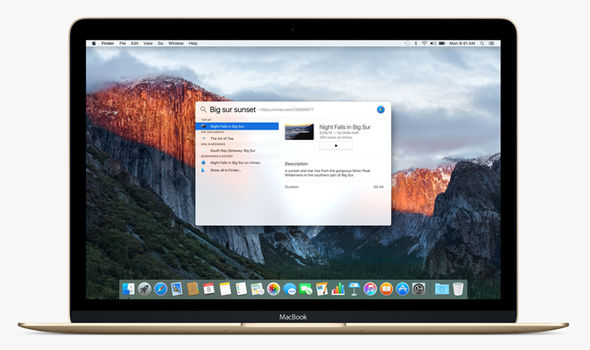
OS X El Capitan does bring some new functionality, including a smart Spotlight Search which now supports natural language, and a Split Screen view for the full-screen apps introduced with Lion. 
A new font – dubbed San Francisco – designed in-house at Apple will also be introduced to the Mac for the first time, after rolling out across watchOS and iOS earlier this year.

Though you're not getting a lot of new functionality, El Capitan is packed with goodies that will shave off seconds here and there. And those seconds quickly add up.

OS X El Capitan: Top 6 of the Best Tips and Hidden Tricks

OS X El Capitan: 6 of the Best Tips and Hidden Tricks
Apple has made a number of improvements to full-screen apps, and added a Split Screen view
APPLE'S latest desktop operating system – OS X 10.11 El Capitan – rolls out across the globe today. Here's what you can expect when you update your Mac operating system.
Apple will roll out its latest desktop operating system later tonight, around 6pm.
OS X El Capitan does not offer dramatic changes, but rather simple refinements and enhancements to the current Mac operating system, called Yosemite.
The new update brings a visual refinement, which hones and tweaks the new look introduced alongside Yosemite.
A new font – dubbed San Francisco – designed in-house at Apple will also be introduced to the Mac for the first time, after rolling out across watchOS and iOS earlier this year.
Though you're not getting a lot of new functionality, El Capitan is packed with goodies that will shave off seconds here and there. Those seconds will add up.
Plus – the update is free, so there is not a lot of excuses not to update.
Just back up your system using Apple's Time Machine, or another back-up solution, before heading to the Mac App Store and launching the update.
It might also be worth double-checking to ensure the software and apps you rely on to get your work done will work seamlessly with the new OS.

OS X El Capitan: 6 of the Best Tips and Hidden Tricks
The Cupertino firm claims the new update brings a number of improvements to Mac performance
Sometimes, it can take third-party app developers a matter of weeks or months to catch-up.
Once you get El Capitan, here are six features worth checking out:

Pinned Websites

A pin is like a bookmark on Apple's Safari browser, except the website you're pinning is always open and refreshing in the background. 
If you visit another website and come back, pins remember where you left off – so long as you don't shutdown the browser.
You might say this sounds like browser tabs. 
A key difference is when you click on an external link and leave a pinned site, the browser opens a new tab, so you don't lose your place on the pinned site.
OS X El Capitan: 6 of the Best Tips and Hidden Tricks
Apps can now run side-by-side, thanks to the Split Screen views, which makes Full Screen more useful
With tabs, the new site will often replaces the site you were on.
Pinned websites means you can always guarantee your place on any chosen site.

Muting Audio

As more and more websites get aggressive at delivering video ads and content, audio might play automatically. 
This gets annoying if you're watching video in another window. 
Safari now has a speaker icon to instantly mute all audio playing in the browser, without affecting audio elsewhere. With the computer's mute button, it's all or nothing.
If the video you're watching is playing in the same browser, the audio for that will mute, too. It works better when playing video in a stand-alone app, such as iTunes. 
Or you can install a separate browser, such as Google's Chrome, and play your Netflix or Hulu video there.

Split Screens And Spaces

The Mac has long let you run multiple apps in separate windows, but you've been limited to one app when it's in full-screen mode.
This changes with El Capitan's Split View, a feature Microsoft has had since Window 8's release in 2012. 
Although you can come close to split screens by resizing two windows and placing them side by side, you now just need to press and hold the green button on the top left of an app's window.
The introduction of split screens also uncovers a little-known feature called Spaces. 
OS X El Capitan: 6 of the Best Tips and Hidden Tricks
Spotlight now supports natural language in its search, such as "spreadsheets from last year"

OS X El Capitan: 6 of the Best Tips and Hidden Tricks
The new update could cause havoc for third-party spotlight replacements, like Alfred and QuickSilver
If your desktop feels cluttered, you can spread your apps out in groups, or Spaces. One Space might be for your productivity apps, such as spreadsheets.
Another might be for goofing off. If you're on a laptop, it's easy to switch by swiping three fingers on the touchpad left or right. 
That's perfect for when your boss suddenly walks by.

Better Notes

The Notes app has traditionally been little more than a word-processing app. 
Now, it's possible to drag in photos, add map locations and create checklists. It's also easier to sift through Web links and attachments you've added. 
The Notes app on iPhones and iPads got a comparable update, and your notes sync across Apple devices. 
You can also access them on Windows computers through iCloud.com. Android users are out of luck.
OS X El Capitan: 6 of the Best Tips and Hidden Tricks
iCloud Notes have been improved and now include images and handwritten notes

Smarter Search

You can search for old documents using natural language, such as "find me spreadsheets from March 2013".
The search tool also retrieves more types of information, including weather and stock quotes.

OS X El Capitan: 6 of the Best Tips and Hidden Tricks

Shaky Cursor

No doubt you've had times you've needed to select text or move a window, but you have no idea where the cursor went. 
Now, just move the mouse back and forth rapidly, or swipe your finger back and forth on the touchpad if it's a laptop. 
The cursor turns into a giant arrow for better visibility.
It might remind you of those giant foam fingers at parades and sports arenas. Freaky, but useful.

How to Setup 2-Step Verification in Gmail Account


Every day, thousands of personal accounts are hacked. If you ever use one password for multiple accounts, you are exponentially increasing your vulnerability to being hacked. As security is a major concern for the corporations and individuals then why to compromise with Gmail’s account security. According to Google, 2-Step Verification adds an extra layer of security to your Google Account, which reduces the chance of being hacked.
What is Gmail’s 2-step verification?
Google has launched its 2-step verification system - anytime an unknown device is used to sign into your Google account, the user has to provide a verification code in addition to the password. So it's not enough for hackers to just get your password; they'll also need physical control of your phone or computer to access your account.Gmail has 2-step verification method to secure your account and protect your important mails from hackers.
1. Sign in to your Gmail account using your email id & Password.
2. Click on a thumbnail of your avatar on the right side of the top menu bar, and then click "Account" to update your settings.
3. You will be redirected to Personal info Tab, Click on 2-step verification in the signing in tab as shown below. 
4. Now Click on Start Setup link as shown in below picture.


5. Enter your phone number in which you want to receive the verification code and Select whether you'd like to receive it by text message or Google Voice call and click send.


6. Once your received the verification code, enter it.


7. Choose whether or not to add your current computer as a trusted device. If you have unchecked the option, 2-step verification will implement on every computer. Otherwise no verification code needed for trusted computer.


8. Now Click on Next button, Read the information about 2-step verification and Click on Confirm.
9. Print a list of backup verification codes and store it in a secure but accessible place, like your wallet. If you ever need to sign into your Google account but don't have your primary phone with you, you can enter one of these codes instead.


10. You can also add a backup mobile no when primary mobile no is not available.


How it works ?
Anytime you sign into your Google account, Google will send a verification code to your registered mobile no via text or voice call and you will need to enter that before you can sign in. If your mobile is not with you then enter the backup verification code to sign in. You can also turn off 2- step verification any time you want in the setting page.

Google Search Tricks: Search By Image On Google

We all know that, Google is the most popular search engine through which we can search anything which we want. This trick is all about Search in Google using image. With Google's Search by Image tool, you no longer need to begin the image search with a word or a phrase. You can now begin with an actual image that you see on the web, or that you have on your computer, to search for similar images or to find out more information about that specific image

Using the Google Images Website

1. Open the Google Images website in your browser by clicking here.
2. Click the Camera icon on the right side of the search box. This will open the Search by Image tool.


3. Select how you want to add an image. There are two ways you can search by an image.
Paste image URL - You can paste any copied URL (address) for an image online.


Upload an image - Click on Choose file button and browse for the image from your computer.
4. After the image is uploaded, click on search. Google show results according to your image.

Note:
·        You cannot "Search by Image" using Internet Explorer 8 or earlier. You must be using Google Chrome, Firefox, Internet Explorer 9 or newer, or Safari.

·        You can search by image from a mobile device if you are using the mobile version of Google Chrome.

Using the Right-Click Menu (Chrome and Firefox)

1. At first click on the below link and then add “search by image extension” for your chrome and firefox browser.
Chrome Extension – Click here
Firefox Extension – Click here
2. Now right-click on an image on a website. You can only do this using Google Chrome, or by installing the Firefox "Search by Image" extension. You can't right-click to search by image in any other web browsers.


3. Select "Search Google for this image". This will open a new tab with the Google Images search results.

miercuri, 30 septembrie 2015

Google Search: 15 Hidden Features Of Google Search Engine


Everyone knows Google as a search engine for searching keywords but most of the people don’t know about the google hidden features. In this article I will tell you about some hidden features of google search engine.
1. Calculator
There is a built-in advance calculator in the Google search box, which is a really simple to use. You can use the calculator for any math problem you want to solve, like calculating the tip at a restaurant, logarithmic and trigonometric calculation, making graphs, or solving geometry problems.

2. Conversions
Using the google search box, you can convert currency and units. You can use the unit converter to convert from one measurement to another. For example, you could convert from Celsius to Fahrenheit or cups to liters. Currency conversions and unit conversions can be found by using the syntax: <amount unit1> in <unit2>. For example, you could type '1 USD in INR', '50 C in F' or '15 inches in cm' etc. and get an instant result.


3. Translations
Another interesting feature of google is the translation. You can translate foreign words to your language in a quick way. Type 'translate <word> to <language>' to translate words to the language you want. For example,'translate apple to hindi' returns result seba.


4. Search for a specific file type
If you are looking for a PDF or a Word file or PPT file, you can search for specific file types by typing '<search term> filetype:pdf ’ or '<search term> filetype:doc' or '<search term> filetype:ppt'. After that google gives you search result of all pdf or doc or ppt file related to your search.


5. Define
Google has an inbuilt dictionary in the search box, which helps you to get definition of the words. Simply type define:term in the search box, google's dictionary function gives you the appropriate meaning of that term.


6. Site search
By using the 'site:' keyword in the search box, you can make Google to search results from only one particular site. For example, by using keyword “site:cusensro.blogspot.com windows” in the search box, you could search article only related to windows from the cusensro blog.


7. Time zones
Using google search box, you can search time for a particular place with time zone as well as date. For this search 'time in <place>' and you will get the local time for that place, as well as the time zone and date. For example, search “time in Delhi” and get the time in Delhi.


8. Weather forecasts
Type the name of a city followed by 'forecast', and Google will tell you the weather today, including levels of precipitation, humidity and wind, as well as the forecast for the next week, based on data from The Weather Channel.


9. Search for local film showings
Search for film showings in your area by typing 'films' or 'movies' followed by your postcode. It will display the show time of different talkies, results are displayed according to zip-code.
10. Chat With Aliens
It’s another feature to have some fun! Just like Mars Feature on Google Earth 5 allows users to explore the surface of Mars and have some talk with an “alien”.


Open the latest version of Google Earth, switch to "Mars" and search for "Meliza". Click on the small robotic icon and you'll be able to chat with Meliza, a friendly relative of Eliza, one of the first chat bots. A message informs Earthlings that "Meliza is using an account on a different planet. There may be translation errors." The chat bot has some predefined text related to Mars and it can't answer to many questions, but it's always ready to rephrase your messages.
11. Exclude search terms
When you're enter a search term that has a second meaning, or a close association with something else, it can be difficult to find the results you want. Exclude irrelevant results using the '-' sign. So for searches for 'apple' where the word 'iPhone' is not used, enter 'apple -iPhone'.


12. Related search
To search for web pages that have similar content to a given site, type 'related:' followed by the website address into the Google search box. For example, typing 'related:timesofindia.in' gives a list of other Indian newspaper websites.


13. Using Public Data
This feature gives you the ability to check trends for population and unemployment rates of various cities and counties. To use it, all you need to do is typing ‘population’ or ‘unemployment rate’ followed by the location you want. For example, I typed: “population rate US” and got the following result.


14. Search for Faces Only
I made the previous image when I typed “Salman Khan” in the search bar and chose “faces”. Sometimes you need to do this if you’re looking for Faces Only.


15. Barrel Roll
In the search box, simply type “do a barrel roll” and see the magic. 

marți, 29 septembrie 2015

How To Add Extra Widgets to Your Blogger Header


How to add a new sidebar to a Blogger template is one of the most common questions between the users of the platform for blogs from Google. Here’s a quick and easy way to add extra widgets to your Blogger header section, which will help you maximize your space.

1. Go to Blogger Dashboard and Select Template.

2. Click on Edit HTML.

3. Locate <b:section class=’header’.

4. Change maxwidgets=’1′ to the maximum number of widgets you want to include in your header.

5. Change showaddelement=’no’> to showaddelement=’yes’>.

6. Save your template.

7. Go to Blogger Layout.

8. Go to Header, then Add A Gadget. You can now add extra widgets to your header area. 

Convert Your Blog Into Do Follow Blog To Get More Comments


If you want to convert no follow blog to do follow blog then you are at the right place. In this article I will show you how to convert no follow blog to do follow blog.
NoFollow vs Dofollow Link
Nofollow links attributes do not allow search engine bots to follow link. That means if the website owner is linking back to you with nofollow attributes, it does not pass on link juice.
Dofollow link passes link juice and they definitely help you much, in order to achieve good page rank. As it instructs search engine spiders to follow this link.
Turn your Blogger Blog into a DoFollow Blog
1. Go to Blogger Dashboard and Select Template.
2. Click on Edit HTML.
3. Search for the code:
<a expr:href='data:comment.authorUrl' rel="nofollow">

 4. Here delete rel=”nofollow” and now it look like this.

<a expr:href='data:comment.authorUrl'>

 5. Now all your blog comments are converted as dofollow.
Why You Convert To DoFollow Blog ?
There are lot of do follow blog which attracting tons of comments and turns into a fun place. Because by commenting in do follow blog, they are getting backlink in return. If you want people to comment in your blog, you have to give them something in return.
A Blog with “rel=nofollow” attribute tells Google that the link should not be followed and google doesn’t count it as a backlink. So, when you convert your blog into a do follow blog, you will get more and more comment.
How to convert a wordpress blog in dofollow blog ?
To convert a wordpress blog to dofollow blog, you have to download below plugins.