miercuri, 14 octombrie 2015

Top 10 facts didn't know about badgers

Top 10 facts didn't know about badgers
Today is National Badger Day, to help the Badger Trust, to help the mammals

October 6 is National Badger Day, helping the Badger Trust (badger.org.uk) to protect badgers. 

1. The earliest recorded use of the word “badger” for the animal was in 1523. Before that, it was called a “brock” or “bauson”.
2. “Badger” was originally (around 1500) a word for an itinerant trader.
3. The animal was probably called a “badger” from the badge-like white mark on its forehead.


Top 10 facts didn't know about badgers
Badgers feed mainly on earthworms of which they may eat hundreds every night.

Top 10 facts didn't know about badgers
The animal was probably called a “badger” from the badge-like white mark on its forehead

4. Another theory it that is comes from the French word “bêcheur” meaning a digger.
5. Badgers feed mainly on earthworms of which they may eat hundreds every night.
6. According to an old belief, when a badger bites, it will not loosen its grip until its teeth meet.

7. A male badger is a boar, a female is a sow, the young are cubs and their system of underground burrows is a sett.
8. Interfering with a badger sett is an offence under the Protection of Badgers Act 1992. So is obstructing access to any entrance of a sett.
 

Top 10 facts didn't know about badgers
Interfering with a badger sett is an offence under the Protection of Badgers Act 1992

9. The honey badger, or ratel, is considered by many to be the world’s most ferocious and fearless animal.
10. The word “badger” does not appear in any Shakespeare play but Twelfth Night mentions “brock” once.

Top 10 facts about October 9th

Top 10 facts about October 9th
Barack Obama and his dog, Bo, who celebrates his seventh birthday on October 9

In Britain, America and beyond there are many reasons to celebrate October 9.
 
1. October 9 is the 49th birthday of UK Prime Minister David Cameron. 
2. October 9 is the seventh birthday of Bo, the dog owned by US President Barack Obama. 
3. Apart from being the First Dog’s birthday, today is also Leif Erikson Day in the US, celebrating the first European known to have seen North America. 
 
Top 10 facts about October 9th
October 9 marks the 63rd anniversary of Uganda's independence from the UK
4. The date chosen for Leif Erikson Day marks the anniversary of the arrival in New York of the first immigrants from Norway on October 9, 1825. 
5. For anyone wishing to send birthday cards to Cameron or Bo, it is worth remembering that October 9 is also World Post Day. 
6. World Post Day marks the founding of the Universal Postal Union on October 9, 1874. 
 
Top 10 facts about October 9th
David Cameron celebrates his 49th birthday today
7. October 9 is Independence Day in Uganda, marking the country’s independence from the UK on October 9, 1962. 
8. October 9 is the Feast Day of St Denis, Bishop of Paris who was martyred in the third century.
 
Top 10 facts about October 9th
October 9th is World Post Day
9. He was decapitated but is said then to have picked up his head and walked six miles preaching a sermon of repentance as he went. 
10. Obama’s dog Bo is a neutered male Portuguese Water Dog. His previous owners called him Charlie.

Google Tricks- Express Your Feelings Through Google

Google search is extremely helpful and it has some in built functions which makes your results meaning full. So you can also use google as calculator and the same way as calculator one can also use Google as graphs. Here are some special Google search keywords to express your feelings.

Just copy and paste following graphical equation in Google search bar and hit enter to see some lovely results.

1. (sqrt(cos(x))*cos(75x)+sqrt(abs(x))-.7)*(4-x*x)^.2, sqrt(9-x^2), -sqrt(9-x^2) from -4.5 to 4.5, -x


2. abs(x)-(1-x^2)^(1/2), abs(x)+(1-x^2)^(1/2), x+ 0.25 from -3 to 3


3. (sqrt(cos(x))*cos(200x)+sqrt(abs(x))-0.7)*(4-x*x)^0.01, sqrt(9-x^2), -sqrt(9-x^2) from -4.5 to 4.5


4. (sqrt(cos(x))*cos(200*x)+sqrt(abs(x))-0.7)*(4-x*x)^0.01,sqrt(9-x^2),-sqrt(9-x^2)

5. ((sqrt(cos(x))*cos(500*x)+sqrt(abs(x))-0.4)*(4-x*x)^0.1


6. sqrt(1-(abs(x)-1)^2), arccos(1-abs(x))-pi


Enjoy!!

marți, 13 octombrie 2015

Why is it called El Capitan? Apple's operating system and the reason behind the name

Why is it called El Capitan: Apple's operating system and the reason behind the name
Apple CEO Tim Cook prepares to announce OS X El Capitan at WWDC 15
APPLE will tonight roll-out its new operating system, OS X El Capitan
 
The name of Apple's new Mac operating system says a lot about what to expect.
OS X El Capitan is named after a natural monument in California, the naming convention Apple adopted after it dropped the names of big cats in 2012 with Mountain Lion.
In real life, El Capitan is a 3000ft rock formation on the north side of Yosemite National Park
 
El Capitan then won't offer any dramatic changes, but rather refinements and enhancements to the current Mac system, OS X 10.10 Yosemite.
Its a subliminal hint Apple has used in the past.
For example, Snow Leopard tweaked and refined the radical changes Apple introduced with the previous version, OS X 10.5 Leopard.
Three years later, Mountain Lion did the same for OS X 10.7 Lion.
 
Why is it called El Capitan: Apple's operating system and the reason behind the name
Split Screen allows you to share and view content between two Full Screen applications
 
Why is it called El Capitan: Apple's operating system and the reason behind the name
OS X El Capitan adds a number of new features of Full Screen apps, like Mail
 
OS X El Capitan does bring some new functionality, including a smart Spotlight Search which now supports natural language, and a Split Screen view for the full-screen apps introduced with Lion. 
A new font – dubbed San Francisco – designed in-house at Apple will also be introduced to the Mac for the first time, after rolling out across watchOS and iOS earlier this year.

Though you're not getting a lot of new functionality, El Capitan is packed with goodies that will shave off seconds here and there. And those seconds quickly add up.

OS X El Capitan: Top 6 of the Best Tips and Hidden Tricks

OS X El Capitan: 6 of the Best Tips and Hidden Tricks
Apple has made a number of improvements to full-screen apps, and added a Split Screen view
APPLE'S latest desktop operating system – OS X 10.11 El Capitan – rolls out across the globe today. Here's what you can expect when you update your Mac operating system.
Apple will roll out its latest desktop operating system later tonight, around 6pm.
OS X El Capitan does not offer dramatic changes, but rather simple refinements and enhancements to the current Mac operating system, called Yosemite.
The new update brings a visual refinement, which hones and tweaks the new look introduced alongside Yosemite.
A new font – dubbed San Francisco – designed in-house at Apple will also be introduced to the Mac for the first time, after rolling out across watchOS and iOS earlier this year.
Though you're not getting a lot of new functionality, El Capitan is packed with goodies that will shave off seconds here and there. Those seconds will add up.
Plus – the update is free, so there is not a lot of excuses not to update.
Just back up your system using Apple's Time Machine, or another back-up solution, before heading to the Mac App Store and launching the update.
It might also be worth double-checking to ensure the software and apps you rely on to get your work done will work seamlessly with the new OS.
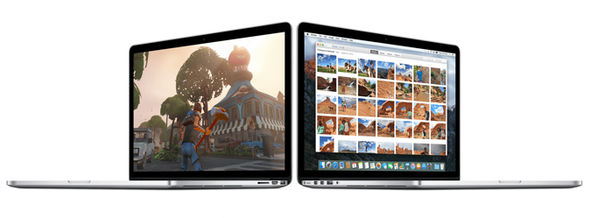
OS X El Capitan: 6 of the Best Tips and Hidden Tricks
The Cupertino firm claims the new update brings a number of improvements to Mac performance
Sometimes, it can take third-party app developers a matter of weeks or months to catch-up.
Once you get El Capitan, here are six features worth checking out:

Pinned Websites

A pin is like a bookmark on Apple's Safari browser, except the website you're pinning is always open and refreshing in the background. 
If you visit another website and come back, pins remember where you left off – so long as you don't shutdown the browser.
You might say this sounds like browser tabs. 
A key difference is when you click on an external link and leave a pinned site, the browser opens a new tab, so you don't lose your place on the pinned site.
OS X El Capitan: 6 of the Best Tips and Hidden Tricks
Apps can now run side-by-side, thanks to the Split Screen views, which makes Full Screen more useful
With tabs, the new site will often replaces the site you were on.
Pinned websites means you can always guarantee your place on any chosen site.

Muting Audio

As more and more websites get aggressive at delivering video ads and content, audio might play automatically. 
This gets annoying if you're watching video in another window. 
Safari now has a speaker icon to instantly mute all audio playing in the browser, without affecting audio elsewhere. With the computer's mute button, it's all or nothing.
If the video you're watching is playing in the same browser, the audio for that will mute, too. It works better when playing video in a stand-alone app, such as iTunes. 
Or you can install a separate browser, such as Google's Chrome, and play your Netflix or Hulu video there.

Split Screens And Spaces

The Mac has long let you run multiple apps in separate windows, but you've been limited to one app when it's in full-screen mode.
This changes with El Capitan's Split View, a feature Microsoft has had since Window 8's release in 2012. 
Although you can come close to split screens by resizing two windows and placing them side by side, you now just need to press and hold the green button on the top left of an app's window.
The introduction of split screens also uncovers a little-known feature called Spaces. 
OS X El Capitan: 6 of the Best Tips and Hidden Tricks
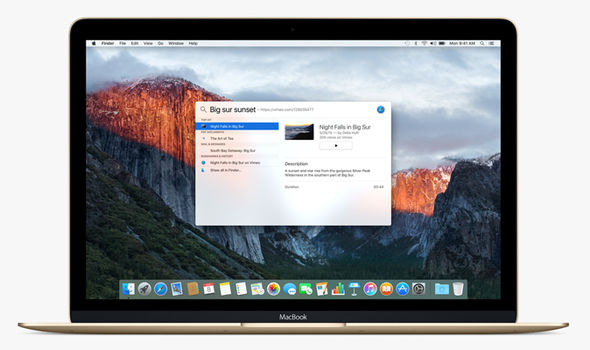
Spotlight now supports natural language in its search, such as "spreadsheets from last year"

OS X El Capitan: 6 of the Best Tips and Hidden Tricks
The new update could cause havoc for third-party spotlight replacements, like Alfred and QuickSilver
If your desktop feels cluttered, you can spread your apps out in groups, or Spaces. One Space might be for your productivity apps, such as spreadsheets.
Another might be for goofing off. If you're on a laptop, it's easy to switch by swiping three fingers on the touchpad left or right. 
That's perfect for when your boss suddenly walks by.

Better Notes

The Notes app has traditionally been little more than a word-processing app. 
Now, it's possible to drag in photos, add map locations and create checklists. It's also easier to sift through Web links and attachments you've added. 
The Notes app on iPhones and iPads got a comparable update, and your notes sync across Apple devices. 
You can also access them on Windows computers through iCloud.com. Android users are out of luck.
OS X El Capitan: 6 of the Best Tips and Hidden Tricks
iCloud Notes have been improved and now include images and handwritten notes

Smarter Search

You can search for old documents using natural language, such as "find me spreadsheets from March 2013".
The search tool also retrieves more types of information, including weather and stock quotes.

OS X El Capitan: 6 of the Best Tips and Hidden Tricks

Shaky Cursor

No doubt you've had times you've needed to select text or move a window, but you have no idea where the cursor went. 
Now, just move the mouse back and forth rapidly, or swipe your finger back and forth on the touchpad if it's a laptop. 
The cursor turns into a giant arrow for better visibility.
It might remind you of those giant foam fingers at parades and sports arenas. Freaky, but useful.

How to Setup 2-Step Verification in Gmail Account


Every day, thousands of personal accounts are hacked. If you ever use one password for multiple accounts, you are exponentially increasing your vulnerability to being hacked. As security is a major concern for the corporations and individuals then why to compromise with Gmail’s account security. According to Google, 2-Step Verification adds an extra layer of security to your Google Account, which reduces the chance of being hacked.
What is Gmail’s 2-step verification?
Google has launched its 2-step verification system - anytime an unknown device is used to sign into your Google account, the user has to provide a verification code in addition to the password. So it's not enough for hackers to just get your password; they'll also need physical control of your phone or computer to access your account.Gmail has 2-step verification method to secure your account and protect your important mails from hackers.
1. Sign in to your Gmail account using your email id & Password.
2. Click on a thumbnail of your avatar on the right side of the top menu bar, and then click "Account" to update your settings.
3. You will be redirected to Personal info Tab, Click on 2-step verification in the signing in tab as shown below. 
4. Now Click on Start Setup link as shown in below picture.


5. Enter your phone number in which you want to receive the verification code and Select whether you'd like to receive it by text message or Google Voice call and click send.


6. Once your received the verification code, enter it.


7. Choose whether or not to add your current computer as a trusted device. If you have unchecked the option, 2-step verification will implement on every computer. Otherwise no verification code needed for trusted computer.


8. Now Click on Next button, Read the information about 2-step verification and Click on Confirm.
9. Print a list of backup verification codes and store it in a secure but accessible place, like your wallet. If you ever need to sign into your Google account but don't have your primary phone with you, you can enter one of these codes instead.


10. You can also add a backup mobile no when primary mobile no is not available.


How it works ?
Anytime you sign into your Google account, Google will send a verification code to your registered mobile no via text or voice call and you will need to enter that before you can sign in. If your mobile is not with you then enter the backup verification code to sign in. You can also turn off 2- step verification any time you want in the setting page.

Google Search Tricks: Search By Image On Google

We all know that, Google is the most popular search engine through which we can search anything which we want. This trick is all about Search in Google using image. With Google's Search by Image tool, you no longer need to begin the image search with a word or a phrase. You can now begin with an actual image that you see on the web, or that you have on your computer, to search for similar images or to find out more information about that specific image

Using the Google Images Website

1. Open the Google Images website in your browser by clicking here.
2. Click the Camera icon on the right side of the search box. This will open the Search by Image tool.


3. Select how you want to add an image. There are two ways you can search by an image.
Paste image URL - You can paste any copied URL (address) for an image online.


Upload an image - Click on Choose file button and browse for the image from your computer.
4. After the image is uploaded, click on search. Google show results according to your image.

Note:
·        You cannot "Search by Image" using Internet Explorer 8 or earlier. You must be using Google Chrome, Firefox, Internet Explorer 9 or newer, or Safari.

·        You can search by image from a mobile device if you are using the mobile version of Google Chrome.

Using the Right-Click Menu (Chrome and Firefox)

1. At first click on the below link and then add “search by image extension” for your chrome and firefox browser.
Chrome Extension – Click here
Firefox Extension – Click here
2. Now right-click on an image on a website. You can only do this using Google Chrome, or by installing the Firefox "Search by Image" extension. You can't right-click to search by image in any other web browsers.


3. Select "Search Google for this image". This will open a new tab with the Google Images search results.